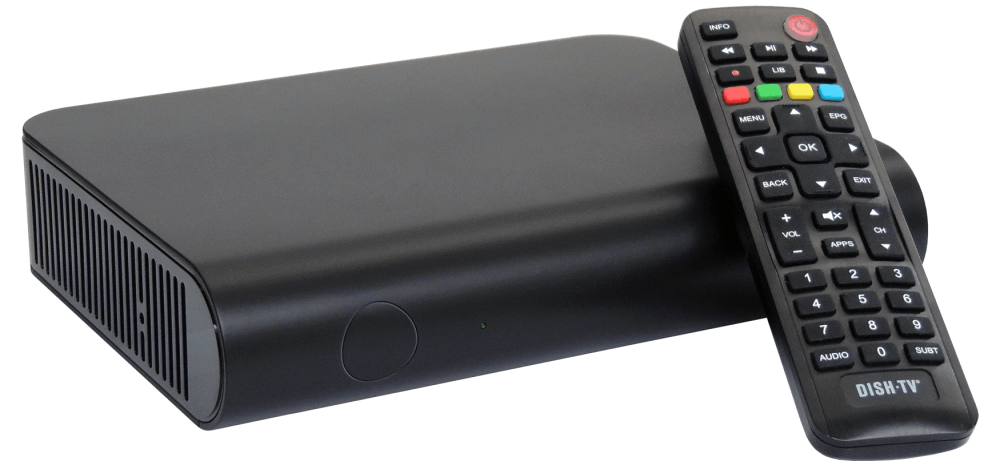
Below are the steps for each model. Please follow the instructions that match your DishTV box.
Please follow the instructions that match your Model:
S7090PVR
- Press 'Menu' on your Remote
- Select "Installation" from the Menu and press 'OK'
- Select "Factory Default" from the options available and press 'OK'
- When prompted select YES and enter the Password (Default is 0000)
- Follow any prompts after the reset
S8100-ZA, S8100-ZC, S8300, S7070RHD-XM, S7070rHD-XS
- Press 'Menu' on your Remote
- Select "Admin" from the Menu and press 'OK'
- Select "Factory Reset" from the options available and press 'OK'
- When prompted select YES and enter the Password (Default is 0000)
SNT7070 - Update to the latest version, see our FAQ.
- Press 'Menu' on your Remote
- Select "Admin" from the Menu and press 'OK'
- Select "Factory Reset" from the options available and press 'OK'
- When prompted select YES and enter the Password (Default is 0000)
After the scan you will likely need to manually add the new Frequency on this Model in order to get Sky Open, Bravo +1, Aljazeera and Eden+1.
- Press 'Menu' on your Remote
- Select "Installation" from the Menu and press 'OK'
- Select "Satellite Scan" and press 'OK'
- Press the 'BLUE' button on your Remote
- Press the 'YELLOW' button, select "Add Transponder" and press 'OK'
The details for this Transponder are as follows:
Frequency: 12530
Symbol Rate: 30000
Polarity: Horizontal
Signal Type: DVB-S2
Network Search: Off
The details for second Transponder are as follows:
Frequency: 12410
Symbol Rate: 30000
Polarity: Horizontal
Signal Type: DVB-S2
Network Search: Off
SAT1, S7070PVR, SNT7070HBBTV
- Press 'Menu' on your Remote
- Select "Installation" from the Menu and press 'OK'
- Select "Factory Reset" from the options available and press 'OK'
- When prompted select YES and enter the Password (Default is 0000)
S8200 - Check Firmware is up to date, see our FAQ.
- Press 'Menu' on your Remote
- Select "Installation" from the Menu and press 'OK'
- Select "Factory Reset" from the options available and press 'OK'
- When prompted select YES and enter the Password (Default is 0000)
If firmware updates aren’t possible and the post-reset channel prompt doesn’t start a scan, you may need to manually add the new frequency to receive Sky Open, Bravo +1 and Al Jazeera.
- Press 'Menu' on your Remote.
- Select "Installation" from the Menu and press 'OK'
- Select "Satellite Scan" and press 'OK'
- Press the 'RED' button on your Remote.
- Press the 'BLUE' button, select "Add Carrier" and press 'OK'.
The details for this Transponder are as follows:
Frequency: 12530
Symbol Rate: 30000
Polarity: Horizontal
Signal Type: DVB-S2
Network Search: Off
The details for second Transponder are as follows:
Frequency: 12410
Symbol Rate: 30000
Polarity: Horizontal
Signal Type: DVB-S2
Network Search: Off
ZYGO S2000
- Press 'Menu' on your Remote
- Select “Setup” from the Menu and press ‘OK’
- Use the ‘Right Navigation’ button to move to “System”
- Enter the PIN/Password (Default is 0000)
- Select "Restore Factory Default" from the options available and press 'OK'
- Select “Reset Setup to Factory Default” and press ‘OK’
A2
- Press 'Menu' on your Remote.
- Select "Settings" from the Menu and press ‘OK’
- Select "Advanced Settings" from the options available and press 'OK'
- Select the option "Select Signal Type" and press 'OK'
- When prompted select YES.
- Follow any prompts after the reset
A7070 - Ensure the Tuning App is Version 1.28.10 or later, see our FAQ.
- Open the Freeview Live TV application.
- Press 'Menu' on your Remote.
- Select "Settings" from the Menu and press OK
- Select "Advanced Settings" from the options available and press 'OK'
- Select the option "Select Signal Type" and press 'OK'
- When prompted select YES.
A7080
- Press 'Home' on your Remote.
- Navigate to Settings in the top-right of the Home Screen
- Select "TV Settings" and press 'OK'
- Select "Channel Search" from the options available and press 'OK'
- Select the option "Select Signal Type" and press 'OK'
- When prompted select YES.
After the reset, follow the on-screen setup. Once tuning completes, leave the box on TVNZ 1 for about one minute and accept any prompt to scan for additional channels.
If no prompt appears, power-cycle the box (turn it off at the wall for 10 seconds), then scroll through all channels from TVNZ 1 to the last channel and back again to refresh the channel list.
A reset may not help if:
- Your satellite box is very old
- The dish is damaged or misaligned
- You are in a very remote location
Learn more here.
For the technical nitty gritty, here are the transponder details for KoreaSat 6.
NORAD ID: 37265 [track on www.n2yo.com]
TP22 (TVNZ) transmitting TVNZ channels &
12484.8MHz
DVB-S2 QPSK
22.5MSym/s
4/5 FEC
0.20 Roll-off
34.862Mb/s
TP14 (SKY) transmitting Three, Bravo, HGTV, Al Jazeera, eden and Rush
12,530 MHz
Horizontal (18v)
DVB-S2 QPSK
30.0 MS/s
2/3 FEC
0.20 Roll-off
No Pilots
TP10 (SKY) transmitting Sky Open and Three+1
12,410 MHz
Horizontal (18v)
DVB-S2 QPSK
30.0 MS/s
TP21 (Kordia) Whakaata Māori and all other channels
12455.2MHz
DVB-S2 QPSK
22.5MSym/s
3/4 FEC
0.20 Roll-off
32.672Mb/s
25 McKee St, Pukete, Hamilton 3200
https://support.dishtv.co.nz
support@dishtv.co.nz

Drag & Drop Website Builder